What is Notion AI, in plain English?
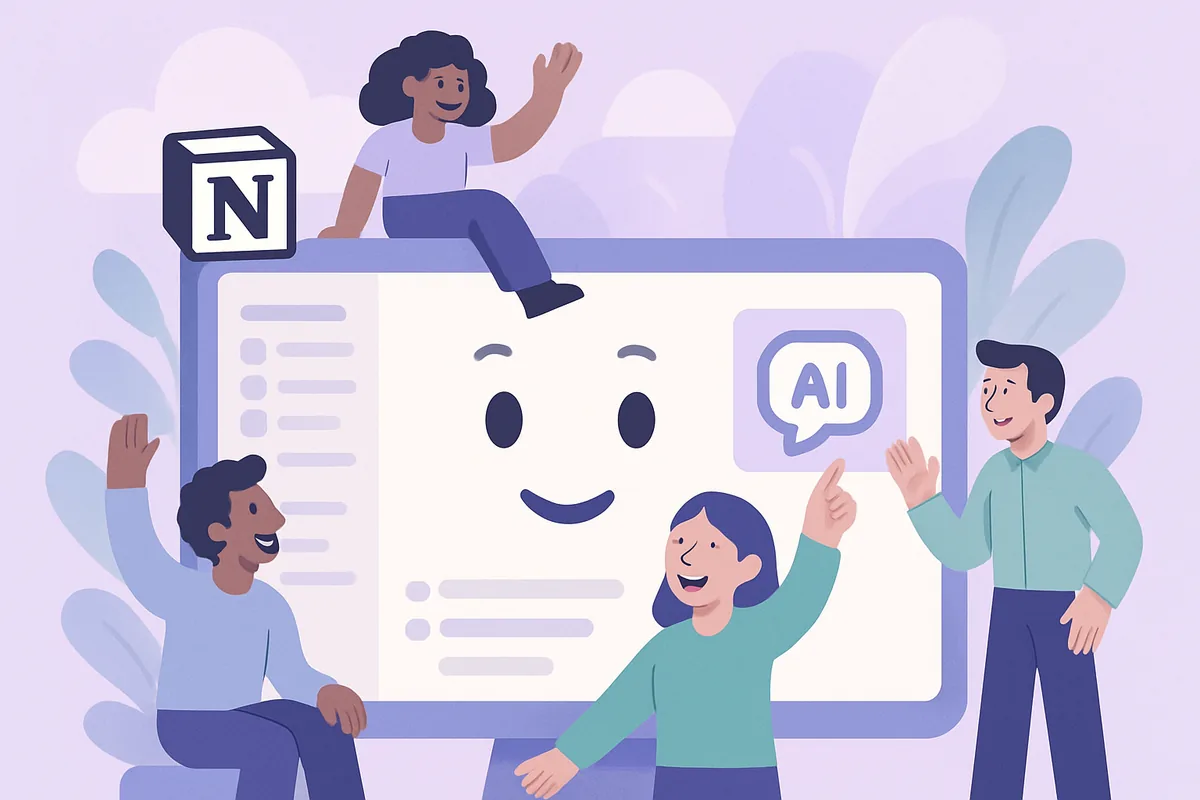
Notion AI is an assistant built directly into Notion, the popular note-taking and organization app. It helps you write faster, summarize long notes, translate text, and reorganize information, all without leaving the page you are already working on. There is no separate app to open.
That "inside your existing workspace" design is what makes it approachable for beginners. Instead of copying text into a separate tool and pasting the result back, you trigger the assistant right where your work already lives. If you are still deciding which AI tools are worth your time, our guide to free vs paid AI tools is a useful companion to this one.
How do you start using Notion AI?
You start by opening any Notion page and calling the assistant, either by typing a slash command in a new block or by selecting existing text and choosing an AI option. You do not need to set anything up in advance beyond having a Notion account with AI features available on your plan.
In practice, there are a few common entry points worth knowing. Notion updates its interface regularly, so the exact names and locations may shift over time, but the general patterns tend to stay the same:
- A slash-style command in a block: in an empty block, type a slash and look for the AI writing options to draft or brainstorm from scratch.
- Acting on selected text: highlight something you have already written and choose an action like summarize, improve, or translate.
- A built-in assistant you can open directly: ask for help across a page rather than a single block.
If you do not see one of these, it is usually a matter of where Notion has moved the feature in a recent update rather than it being unavailable, so a quick look through the page menus or help usually turns it up.
If any of the terminology feels unfamiliar, our AI glossary for beginners is a quick reference to keep open alongside your first attempts.
What are the most useful features for a beginner?
The features most beginners get value from are drafting, summarizing, and cleanup. These cover the everyday friction of turning rough thoughts into something usable, which is where an assistant saves the most time without requiring any special skill to operate.
Writing help and first drafts
When you are staring at a blank page, Notion AI can generate a starting draft from a few keywords, brainstorm ideas for a topic, or rewrite an existing passage to be clearer and more concise. Treat the output as a first draft to refine rather than a finished piece.
Summarizing long notes
Long meeting notes, research pages, and articles pasted into Notion can be condensed into a short set of key points. This is one of the fastest ways to get value on day one, since it turns a wall of text into something you can actually scan.
Translation and tone adjustments
You can translate a block of text into another language or shift the tone of a message to be more formal or more casual. These small adjustments are handy for anyone who writes for different audiences from the same workspace.
What are some practical ways to use it?
The clearest way to understand Notion AI is to picture it in a real routine. A few examples show how the same handful of features apply differently depending on what you do day to day, without needing any technical setup.
- Students: summarize lecture notes, turn a topic into an essay outline, or translate a research excerpt.
- Project coordinators: draft a project brief, condense a meeting into action items, or brainstorm task ideas.
- Writers and creators: generate post ideas, produce a rough first draft, or tighten existing writing before publishing.
In each case the pattern is the same: the assistant produces a starting point quickly, and you provide the judgment to refine it. That division of labor is what keeps AI really helpful rather than something you have to double-check into oblivion.
Can you connect Notion AI to your other apps?
Notion AI works inside Notion, but you can connect Notion itself to your other apps using a no-code automation platform. That lets you move information automatically, such as sending a note summary to a team chat or creating Notion entries from form submissions, without manual copying.
This is a separate step from the built-in assistant, and it is worth adding only once repetitive copying between apps becomes a real annoyance. Our no-code automation hub walks through how these platforms link Notion to the other tools you use, in plain language and without any coding.
How do you get better results from Notion AI?
You get better results by being specific, iterating, and always editing the output. Notion AI, like any assistant, responds to the quality of your request, so a clear instruction with context beats a vague one. A little practice with how you phrase requests goes a long way.
- Be specific: tell it the audience, length, and tone you want. "Summarize this into five bullet points for a busy manager" beats "summarize this."
- Iterate: if the first result misses, adjust your instruction rather than starting over. Small refinements usually get you there faster than a fresh prompt.
- Always edit: the assistant produces drafts, not final copy, and it can state things confidently that are not quite right, so a quick human review is essential.
- Start narrow: pick one task, like summarizing meeting notes, and get comfortable before spreading the assistant across your whole workspace.
If you would rather test a few assistants before settling on one, our guide to powerful AI tools you can try instantly is a low-commitment way to compare them side by side.
Is Notion AI worth paying for?
Notion AI is worth the upgrade if you already live in Notion and regularly draft, summarize, or reorganize notes there. If Notion is not part of your routine, a standalone assistant may serve you just as well without adding another subscription to keep track of.
The most sensible approach is to try the limited features first, notice which tasks it genuinely speeds up over a week or two, and only then decide whether fuller access earns its place. That test-before-you-commit habit applies to almost every AI tool, and it is the surest way to avoid paying for features you will not use.
Next step: to compare Notion AI against other assistants and decide what belongs in your toolkit, visit our AI tools hub.