Why start with small automations?
Small automations are the fastest way to see the value of no-code tools, because each one removes a specific daily annoyance you can feel immediately. Rather than trying to automate your whole life at once, you build one workflow, watch it save you a few minutes, and get hooked on the idea.
Every automation below uses the same core pattern: a trigger (something happens) and one or more actions (do this in response). Once that pattern clicks, everything else is a variation on it. If you are brand new, our guide to how Make.com works walks through that foundation first.
1. Turn emails into tasks or saved records
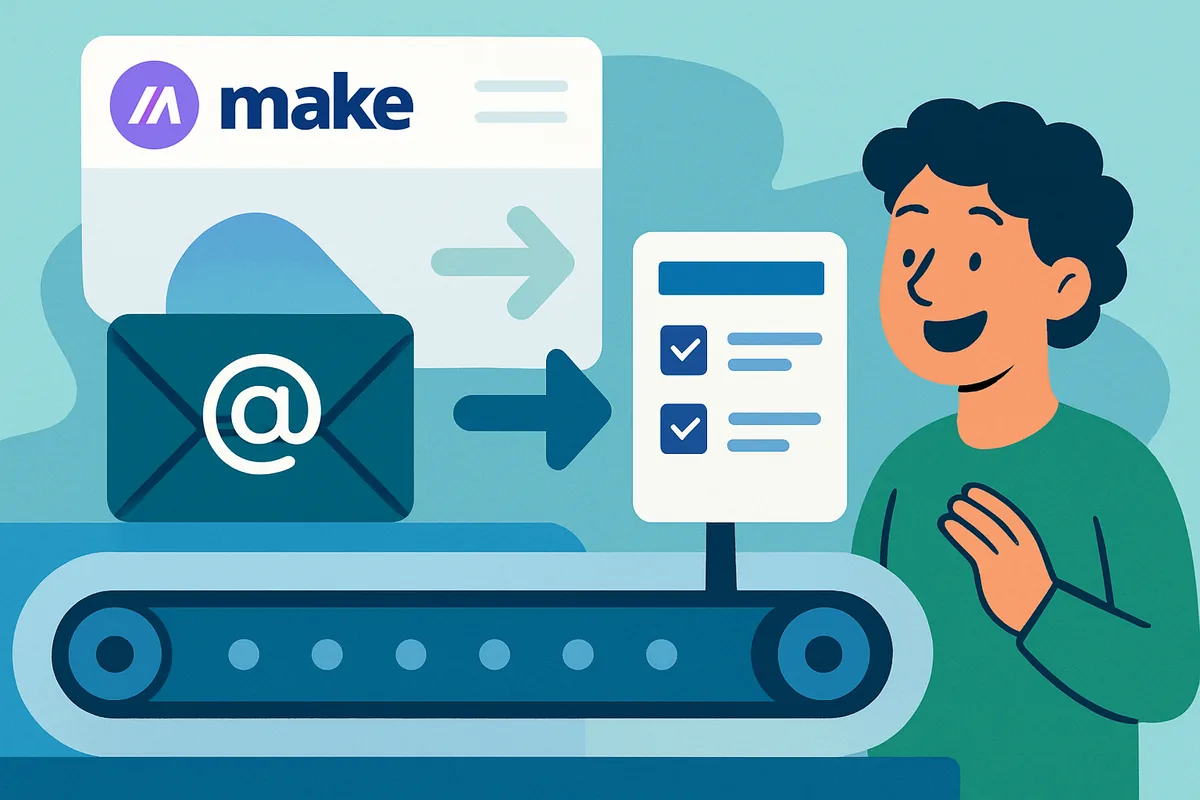
This is the classic first automation: when a specific type of email arrives, create a task or save a record automatically. It teaches the trigger-and-action pattern in its simplest form and immediately stops important emails from getting buried.
A common version is turning emails into to-do cards, which we cover step by step in our email-to-Trello guide. Once you can do that, you can point the same idea at a spreadsheet, a notes app, or a project board.
2. Save email attachments automatically
Set up an automation that watches for emails with attachments and saves those files to cloud storage in an organized folder. It quietly removes the tedious habit of downloading and filing attachments by hand, which is exactly the kind of small friction automation is made for.
This one is especially useful for receipts, invoices, and documents you need to keep but rarely open. Where this pays off is at tax time or when you need to find a file fast and it is already sorted.
3. Route form responses to the right place
When someone submits a form, automatically send that response where it needs to go: a spreadsheet, a team chat, an email, or all three. Forms are a natural trigger because they produce clean, structured information that is easy to pass along.
This is the backbone of simple lead capture and feedback collection. Instead of checking a form dashboard, the responses come to you, formatted and filed, the moment they arrive.
4. Post the same update to several places at once
Publish one update and have it appear across multiple channels automatically, so you write once and reach everywhere. This saves the repetitive copy-and-paste of sharing the same announcement in several apps.
Keep this one simple at first. Start by connecting two destinations you post to often, confirm the formatting looks right in each, and only then add more. Small and reliable beats broad and broken.
5. Get a daily or weekly digest of what matters
Build an automation that collects information from a source you check often and sends you a tidy summary on a schedule. Instead of refreshing a dashboard all day, you receive one digest at a time you choose.
This is a great introduction to scheduled automations, which run on a timer rather than in response to an event. A morning summary of new form responses, sales, or sign-ups is a common and genuinely useful example.
6. Add an AI step to summarize or sort text
Once you are comfortable, add an AI step that reads text and does something useful with it, like summarizing a long message or sorting feedback by sentiment. This is where no-code automation and AI start to combine into something powerful.
For example, you could have incoming feedback summarized into a short note before it reaches your inbox. Our guide to building an AI chatbot with Make.com shows how to connect an AI service into a scenario, and the same idea applies to summarizing and sorting.
7. Create a simple reminder or follow-up system
Set up an automation that reminds you to follow up when something needs attention, such as a new lead that has not been contacted or a task that has sat too long. It turns "I meant to get back to that" into an automatic nudge.
This closes the loop on the earlier automations: once information is flowing in and getting organized, a gentle reminder system makes sure nothing important quietly slips through.
What do these automations have in common?
Every automation on this list shares the same shape: a trigger starts it, one or more actions carry it out, and information is mapped from one app to the next. Once you internalize that shape, you stop seeing seven separate tricks and start seeing one flexible skill you can point at almost anything.
That is the real reason to start with small, concrete automations. You are not just saving a few minutes on each one; you are learning the reusable pattern behind all of them. The email automation teaches triggers, the digest teaches schedules, the AI step teaches how to plug in outside services, and the reminder teaches conditional logic. Put together, those pieces cover the vast majority of everyday automations, so a handful of beginner projects quietly turns into a toolkit you can adapt for years.
How should you actually get started?
Pick the one automation from this list that matches your biggest daily annoyance, build just that one, and get it working reliably before adding another. Test it with sample data, watch the run history for a day or two, and treat it as an assistant you supervise at first.
That steady, one-at-a-time approach builds a small library of automations you really trust, which is far more valuable than a pile of half-finished experiments. When you are ready to go deeper, our no-code automation hub collects the step-by-step tutorials for each of these ideas.
Next step: build your very first automation with our step-by-step first Make.com automation guide.