![Your First Make.com Automation: Turn Emails into Trello Cards [Step-by-Step Guide]](/content/images/2026/07/your-first-make-com-automation-turn-emails-into-trello-cards-step-by-step-guide.webp)
What does this automation actually do?
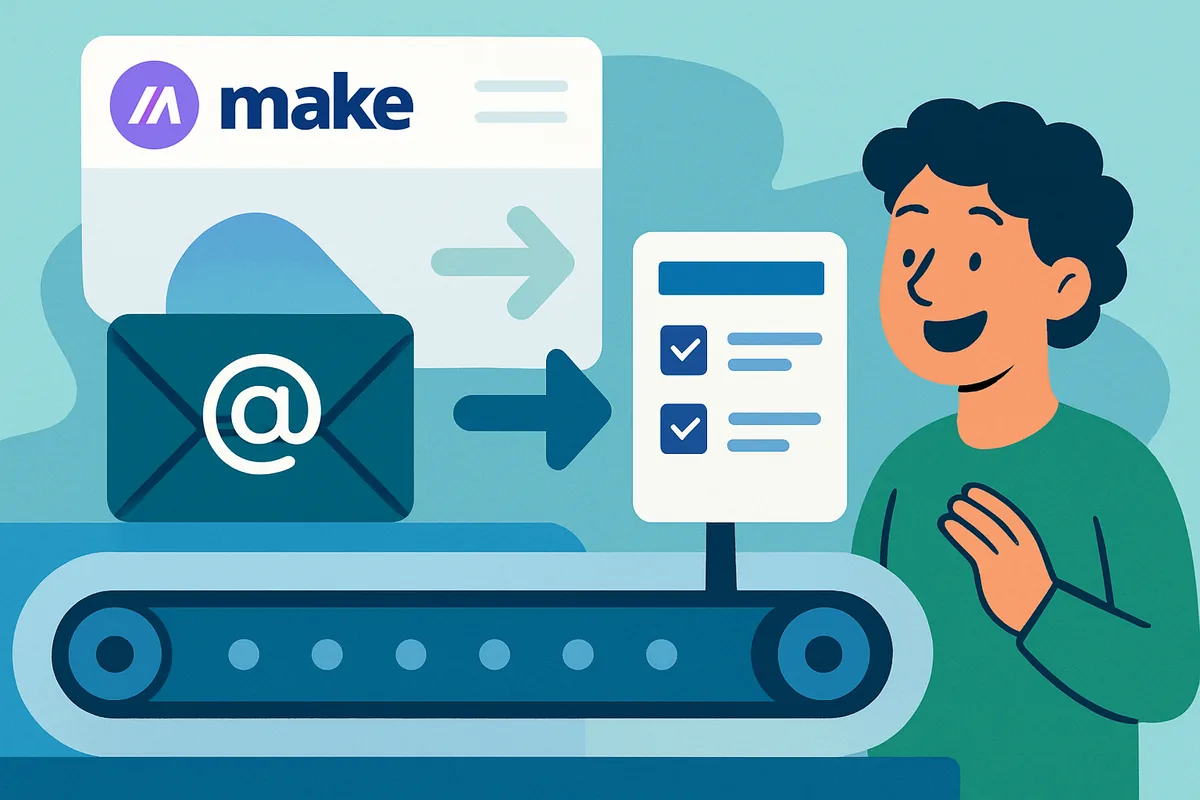
This scenario watches an email inbox for new messages and automatically creates a Trello card for each one that matches your criteria. Instead of manually copying tasks out of your inbox, the automation does it the moment a qualifying email arrives.
Where this pays off: emails with action items, follow-ups, or ideas tend to get buried in a crowded inbox. Turning them into cards on a dedicated board gives you one place to see everything you need to do, and it removes the manual step where things most often get forgotten.
What do you need before starting?
You need a free Make.com account, a Trello account with at least one board and list, and an email account you can connect, ideally a dedicated address for task submissions but any regular inbox works. Basic familiarity with Trello boards and lists will help you customize things later.
- A Make.com account. The free tier supports the email and Trello modules this scenario needs.
- A Trello board and list. Create a board like "Inbox Tasks" with at least one list, such as "To Do."
- An email account. Any IMAP or SMTP-capable address, or Make.com's own built-in inbox.
How do you build the scenario step by step?
Building this automation takes seven steps: create the scenario, add the email trigger, add the Trello action, map the data between them, optionally add a filter, test it, then activate it. Each step below builds directly on the last.
- Create a new scenario. Log in to your Make.com dashboard and click to create a new scenario. You will see a blank canvas where modules get added.
- Add the email trigger. Search for "Email" and choose a watch-emails action. Connect your inbox by entering your email server details, or use the address Make.com provides if you choose its built-in inbox option.
- Set a folder or filter on the trigger itself. Point the module at the folder you want to monitor, such as your main inbox or a dedicated label.
- Add the Trello action. Search for "Trello" and choose the create-a-card action. Authorize Make.com to access your Trello account, then choose the board and list where new cards should land.
- Map email data into the card fields. Click into the card name field and select the email subject from the dynamic data selector. Do the same for the description field, mapping it to the email body.
- Add a filter (optional but recommended). Insert a filter between the two modules so only emails meeting your criteria, like a subject containing a keyword, continue to create a card.
- Test, then activate. Save the scenario and click "Run once." Send a test email that matches your criteria and confirm a card appears on your Trello board with the expected title and description. Once it works, toggle scheduling on and choose how often Make.com should check for new mail.
Why add a filter to this automation?
A filter prevents every single email in your inbox from becoming a Trello card, which would quickly turn your board into as much of a mess as your inbox. Filtering on a subject keyword, like a bracketed tag, keeps the automation focused on emails you deliberately flagged as tasks.
For a refresher on the general concepts behind triggers, modules, and filters before diving deeper into this one, our Make.com explained guide covers the basics in more depth.
How do you make this automation more resilient?
Once your basic scenario is working reliably, two additions make it sturdier: an error handler that alerts you when a run fails, and a second Trello step to carry over attachments. Neither is required for a first pass, but both are worth adding once you depend on the automation daily.
- Error handling. Add an error handler module so a Slack message or email tells you the moment a run fails, rather than discovering silently missed tasks days later.
- Attachments. Chain a second Trello action after the card is created to upload any attachment from the original email, keeping related files with the task.
- Branching. Use a router to split the flow so, for example, emails tagged "urgent" land in a different Trello list than routine ones.
What mistakes trip up beginners on their first scenario?
The most common beginner mistakes with this automation are skipping the filter, forgetting to test with "Run once" before activating, and mapping the wrong data field. All three are easy to avoid once you know to watch for them.
- Skipping the filter. Without one, every email in the watched folder or inbox becomes a card, including newsletters and notifications you never meant to track. Add a filter before you activate the scenario, not after your board is already cluttered.
- Activating before testing. Always run the scenario once manually and confirm the resulting card looks correct. It is much easier to fix a mapping mistake on one test card than to untangle dozens of miscreated cards after a week of live runs.
- Mapping the wrong field. It is easy to accidentally map the sender's address into the card name instead of the subject line. Double-check each mapped field against the test run's output before trusting the scenario with real email.
- Leaving the folder scope too broad. Watching your entire inbox instead of a dedicated folder or label means unrelated mail can slip through even with a filter in place. A dedicated folder gives you a second layer of control.
What other workflows build on this same pattern?
Once you understand triggers, filters, and data mapping from this one automation, the same pattern applies to almost any two-app workflow you want to connect. A few natural next steps build directly on what you just learned here.
Our quicker email-to-Trello walkthrough covers the same idea in a more condensed format if you want a faster reference once you know the ropes. If you would rather route emails into an AI-generated report instead of a task board, see our guide to AI reports with Make.com. And our roundup of five Make.com hacks for beginners has several more starter automations worth trying next.
Next step: for the bigger picture on why Make.com is our default recommendation and how it compares to Zapier and n8n, visit our automation hub.