What does this automation do in plain terms?
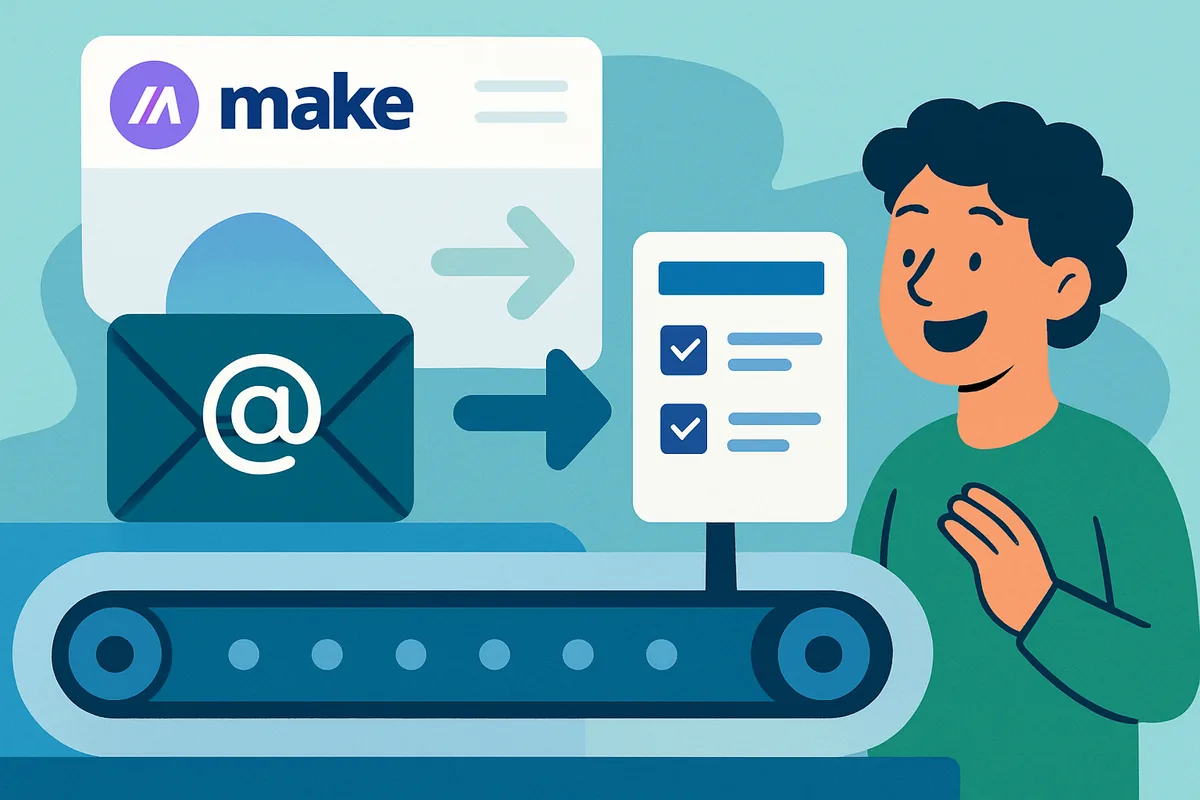
This automation watches your inbox and creates a Trello card the moment a matching email arrives, so nothing you flagged as a task gets lost in a crowded inbox. It runs on Make.com and takes five steps to set up from a blank scenario.
Where this pays off: if you already treat certain emails as to-dos, tagging a vendor follow-up or a request from a colleague, this closes the gap between "I should do something about this email" and actually having it on your task board.
What do you need before you start?
You need a Make.com account, which has a free tier generous enough for this workflow, plus a Trello board with a list to receive new cards, and access to the email account you want to monitor. Nothing else is required to get the basic version running.
What are the five steps to build this automation?
The five steps are: connect your email, configure the trigger, connect Trello, map the fields, then test and activate. Each step takes only a couple of minutes once you know what to look for.
- Connect your email account. Create a new scenario in Make.com, search for your email provider, and authorize access to the inbox you want to watch.
- Configure the trigger. Choose which folder to monitor and, if you want, set a filter so only emails matching a keyword in the subject line count as a trigger.
- Connect Trello. Add a Trello module, choose the create-a-card action, and authorize your Trello account. Select the board and list where new cards should appear.
- Map email data into card fields. Set the card name to the email subject and the description to the email body, using the dynamic data selector to link the two modules.
- Test, then activate. Run the scenario once with a real test email, confirm the card appears correctly, then turn on scheduling so it runs automatically going forward. Give it a day or two of real use before assuming it is fully dialed in, since your first filter is rarely the last word on what counts as a task worth capturing.
How do you keep the automation from creating too many cards?
Add a filter between the email trigger and the Trello action so only messages meeting your
criteria continue through the scenario. A subject keyword, like a bracketed tag such as
[Task], is the simplest filter and works well for most people starting out.
Sending automated cards to a dedicated list, rather than mixing them into your main working list, also gives you a lightweight review step before a card counts as a real commitment on your board.
Can you adapt this same flow beyond Trello?
Yes, the exact same five-step pattern works for Asana, Todoist, or nearly any task app Make.com supports. Only the second module changes, from a Trello create-a-card action to that app's equivalent create-task action, while the email trigger and field mapping stay conceptually the same.
This is one of the more useful things to understand about no-code automation generally: once you learn one trigger-to-action pattern, you can usually reuse it across a dozen different app combinations with only minor changes. Swapping Trello for a different task manager rarely requires rebuilding anything beyond that single module and its field mapping.
This reuse also applies beyond task managers. The same email trigger could just as easily feed a spreadsheet row, a Slack notification, or a calendar event instead of a card, depending on where you actually want a record of the email to live.
What if the automation does not work on the first try?
Most first-try problems trace back to one of three things: the trigger folder is wrong, the filter is too strict or too loose, or a field mapping points at the wrong data. Working through these in order usually finds the issue quickly.
- Check the trigger folder. Confirm the scenario is actually watching the folder or label your test email landed in. A trigger pointed at the wrong folder will simply never fire, with no error message to explain why.
- Loosen or tighten the filter. If no card appears, temporarily remove the filter to confirm the base trigger-to-action connection works, then reintroduce the filter one condition at a time until you find the one blocking your test email.
- Re-check your field mappings. Click into each mapped field and confirm it still references the email module's subject or body, rather than a static placeholder value left over from testing.
- Look at the execution log. Make.com's run history shows exactly what data passed between modules on each execution, which is often the fastest way to spot a mismatch between what you expected and what actually happened.
How does this compare to doing it manually?
Manually converting emails into tasks means opening the email, copying the relevant text, switching to Trello, creating a card, and pasting the details in, several small steps repeated every single time. The automation collapses all of that into something that happens the moment a qualifying email lands, with zero ongoing effort from you.
The time savings compound over weeks rather than showing up as a single dramatic moment. A task that used to take even thirty seconds, done a dozen times a day across a busy inbox, adds up to real time back in your week once it happens automatically instead.
What comes after this automation is running?
Once your email-to-task flow is live, a few natural extensions are worth exploring: adding attachments to cards, routing urgent emails differently, or building a second automation entirely. Our more detailed step-by-step walkthrough covers attachments, error handling, and branching logic if you want to go further with this exact workflow.
If you want to combine automation with an AI assistant that can also respond to incoming messages, see our guide to building your own AI chatbot with Make.com. And for a wider menu of beginner-friendly automations beyond email and Trello, our roundup of five Make.com hacks for beginners is a good next stop.
Next step: for the full picture of how Make.com works and when to consider Zapier or n8n instead, visit our automation hub.


![Your First Make.com Automation: Turn Emails into Trello Cards [Step-by-Step Guide]](/content/images/2026/07/your-first-make-com-automation-turn-emails-into-trello-cards-step-by-step-guide.webp)